
5.8 KiB

Open SWE - An Open-Source Asynchronous Coding Agent
Open SWE is an open-source cloud-based asynchronous coding agent built with LangGraph. It autonomously understands codebases, plans solutions, and executes code changes across entire repositories—from initial planning to opening pull requests.
Note: you're required to set your own LLM API keys to use the demo.
Note
💬 Read the announcement blog post here
Features
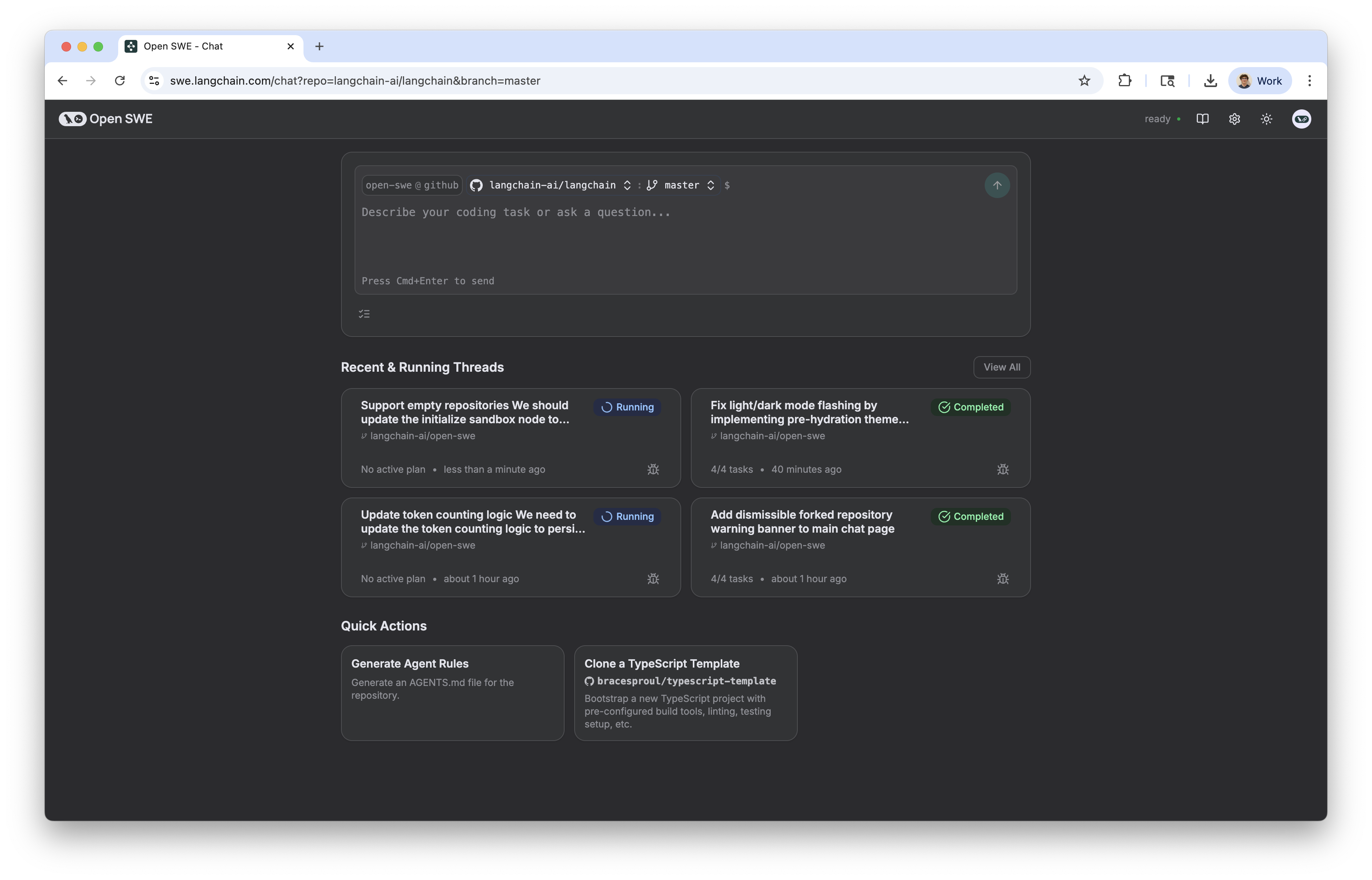
- 🔗 Trigger from Linear, Slack, or GitHub — mention
@openswein a Linear comment, Slack thread, or GitHub PR comment to kick off a task - 👀 Instant acknowledgement — reacts with 👀 the moment it picks up your message so you know it's on it
- 💬 Message it while it's running — send follow-up messages mid-task and it'll pick them up before its next step
- 🔀 Run multiple tasks in parallel — each task runs in its own isolated cloud sandbox, no queuing
- 🔐 GitHub OAuth built-in — authenticates with your GitHub account automatically, no token setup needed
- 🚀 Opens PRs automatically — commits changes and opens a draft PR when done, linked back to your Linear ticket
Installation
Prerequisites
- Python 3.11+
- uv package manager
- LangGraph CLI
- ngrok (for exposing local webhooks)
1. Clone the repo
git clone https://github.com/langchain-ai/open-swe.git
cd open-swe/apps/agent
2. Install dependencies
uv sync
3. Set environment variables
Create a .env file in apps/agent/ with the following:
# LangSmith
LANGSMITH_API_KEY_PROD=""           # Your LangSmith API key
LANGSMITH_ENDPOINT="https://api.smith.langchain.com"
LANGSMITH_HOST_API_URL="https://api.host.langchain.com"
LANGCHAIN_TRACING_V2="true"
LANGCHAIN_PROJECT=""

# LLM
ANTHROPIC_API_KEY=""                # Anthropic API key (recommended default provider)

# GitHub OAuth (via LangSmith agent auth)
GITHUB_OAUTH_PROVIDER_ID=""         # GitHub OAuth provider ID from LangSmith
X_SERVICE_AUTH_JWT_SECRET=""        # Secret for service JWT tokens

# GitHub App (Bot)
GITHUB_APP_ID=""                    # GitHub App ID
GITHUB_APP_PRIVATE_KEY="-----BEGIN RSA PRIVATE KEY-----
...
-----END RSA PRIVATE KEY-----
"
GITHUB_APP_INSTALLATION_ID=""       # GitHub App installation ID

# GitHub Webhook
GITHUB_WEBHOOK_SECRET=""            # Secret for verifying GitHub webhooks

# Linear
LINEAR_API_KEY=""                   # Linear API key
LINEAR_WEBHOOK_SECRET=""            # Secret for verifying Linear webhooks

# Slack (optional)
SLACK_BOT_TOKEN=""
SLACK_BOT_USER_ID=""
SLACK_BOT_USERNAME=""
SLACK_SIGNING_SECRET=""

# Sandbox
DEFAULT_SANDBOX_TEMPLATE_NAME=""    # LangSmith sandbox template name (uses default if not set)

# Token encryption
TOKEN_ENCRYPTION_KEY=""             # 32-byte url-safe base64 key for encrypting GitHub tokens
4. Run the agent
In one terminal, start the LangGraph dev server:
uv run langgraph dev
In a second terminal, start the webhook server:
make run
5. Expose webhooks with ngrok
In a third terminal, expose the webhook server so Linear/GitHub/Slack can reach it:
ngrok http 8000
Use the ngrok HTTPS URL as your webhook endpoint when configuring Linear, GitHub, and Slack integrations (e.g. https://xxxx.ngrok.io/webhooks/linear).
The LangGraph server runs on http://localhost:2024 and the webhook server on http://localhost:8000.
Setting up the Linear Webhook
1. Get your webhook URL
Start ngrok and copy the HTTPS URL:
ngrok http 8000
# e.g. https://xxxx.ngrok.io
Your Linear webhook URL will be: https://xxxx.ngrok.io/webhooks/linear
2. Create the webhook in Linear
- Go to Linear → Settings → API → Webhooks
- Click New webhook
- Fill in the form:
- Label:
open-swe - URL:
https://xxxx.ngrok.io/webhooks/linear - Secret: generate a random string and copy it — this goes in
LINEAR_WEBHOOK_SECRETin your.env
- Label:
- Under Data change events, enable:
- Comments →
Create
- Comments →
- Click Create webhook
3. Set the Linear API key
Open SWE uses LINEAR_API_KEY to fetch full issue details (description, project, team) and to post comments back. To get it:
- Go to Linear → Settings → API → Personal API keys
- Click New API key, name it
open-swe - Copy the key into
LINEAR_API_KEYin your.env
4. Verify it works
Comment @openswe on any Linear issue. You should see:
- A 👀 reaction appear on your comment within a few seconds
- A new run appear in your LangSmith project
Usage
Open SWE can be used in multiple ways:
- 📋 From Linear. Mention
@openswein a comment on any Linear issue and describe the task you want it to perform (e.g.@openswe fix the login bug described above). The agent will pick up the issue context along with your instructions and start working on it. - 🐙 GitHub (for Open SWE-generated PRs). Once Open SWE completes implementation, it pushes changes to a branch
open-swe/<thread-id>and opens a draft pull request linking back to the originating Linear issue. From there, you can review the code, request changes, and merge when ready.